

Claude Code + Obsidian = AI Second Brain
How creating AI workspace made me 10x more efficient

Today I’ll show you something that completely changed how I work with AI tools.
I run multiple projects at the same time. I work 9-5 in a product role. I build a mobile app. This Substack is a side project too.
For a long time, my biggest problem was that LLMs didn’t have context about my work, so they didn’t work well enough. I would re-explain my projects to ChatGPT manually. I tried maintaining a Notion with copy-paste prompts with context about my work. It all felt like a waste of time.
Then I tried out Obsidian + Claude Code and set up an AI workspace on my laptop. One folder where AI agent sees everything that I work on (projects, repos, notes, images) and writes back into the notes.
Honestly, this is one of the easiest and most powerful things to 10x how you work with AI Agents.
Today I will show how to set it up.
What is the AI workspace?
In fact, it is super simple. You create one folder anywhere at your computer with one assumption: this is where your AI agent will run. The agent will see everything that is inside, can access and edit all the files there.
Look at this:
ai-workspace/
├── repos/
│   └── project-2/         ← codebase
│   └── project-1/         ← codebase
├── notes/                   ← your Obsidian vault
│   ├── strategy/
│   ├── meeting-notes/
│   ├── research/
│   └── sprint-briefs/
├── files/                   ← any other files
├── AGENTS.md                ← workspace-level rules
└── CLAUDE.md                ← Claude Code specific rules
You clone repos there, keep notes (Obsidian vault - more on this later), and keep any files that your agent should read and edit.
AGENTS.md at the top level instructs the agent how to interact with the workspace.
Finally, your agent has MCPs connected through Claude Code, so it can also read data from any tool you use.
Read this to get started with MCPs:

Then, you run Claude Code from this folder. It codes in your repos. Reads product docs from the Obsidian vault. Creates PM documents, like PRDs, release notes etc.
Follow along to see real examples how to use the AI workspace as a Product Manager.
Why it matters for me as a PM?
Let’s assume you are a mid-to-senior level product manager. You are very good at your job. You analyze user feedback, run A/B tests and your product is growing. One problem: you work across 10 different tabs: ChatGPT, Excel, Jira, Notion, you name it.
The AI workspace will not change what you do: you still work on strategy, research, sprint planning, stakeholder communication. But it will change how you do all these tasks: now you can ask an agent one question and it will cross-reference all your sources.
What you’re doing now and what changes
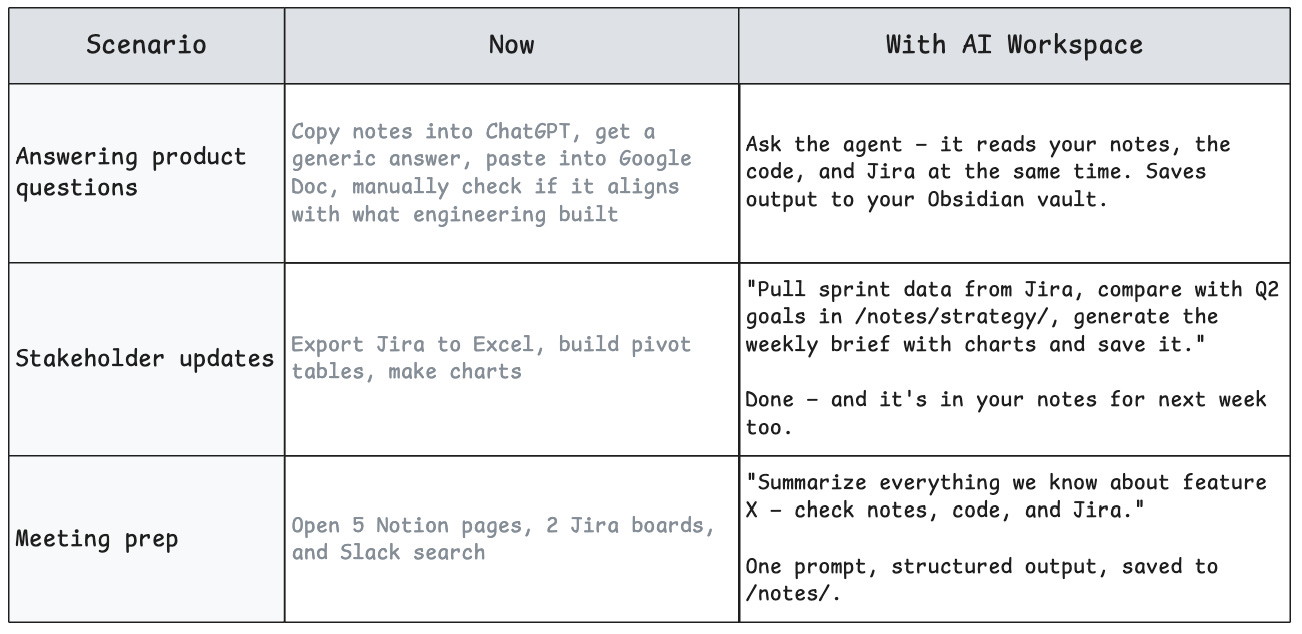
The bottom line
ChatGPT forgets stuff. Your workspace remembers. The notes compound over time, and you’re building a long-term context for any LLM.
No more copy-pasting between multiple tabs. Your AI-Agent is a single POC for pulling data from every layer.
You finally speak the same language as your engineers. You are no longer a PM that asks questions on Slack. You are the PM who checks the code.
It’s a system. Not a conversation. ChatGPT was a chatbot, but the AI workspace has structure, tools, memory - you are creating a PM operating system.
Let’s get our hands dirty and set it up.
Why Obsidian?
Obsidian works pretty much like Notion. On the left side, you see a file tree. In the middle section, you can see the file content. You can keep there text files, photos, and it has a plugin library that enables custom stuff like kanban boards, or diagrams.
I will write another post about plugins in the future because they are cool and Claude Code can work with them too.
I will not show how to download and install because it is dead simple. Start here: https://obsidian.md/download.
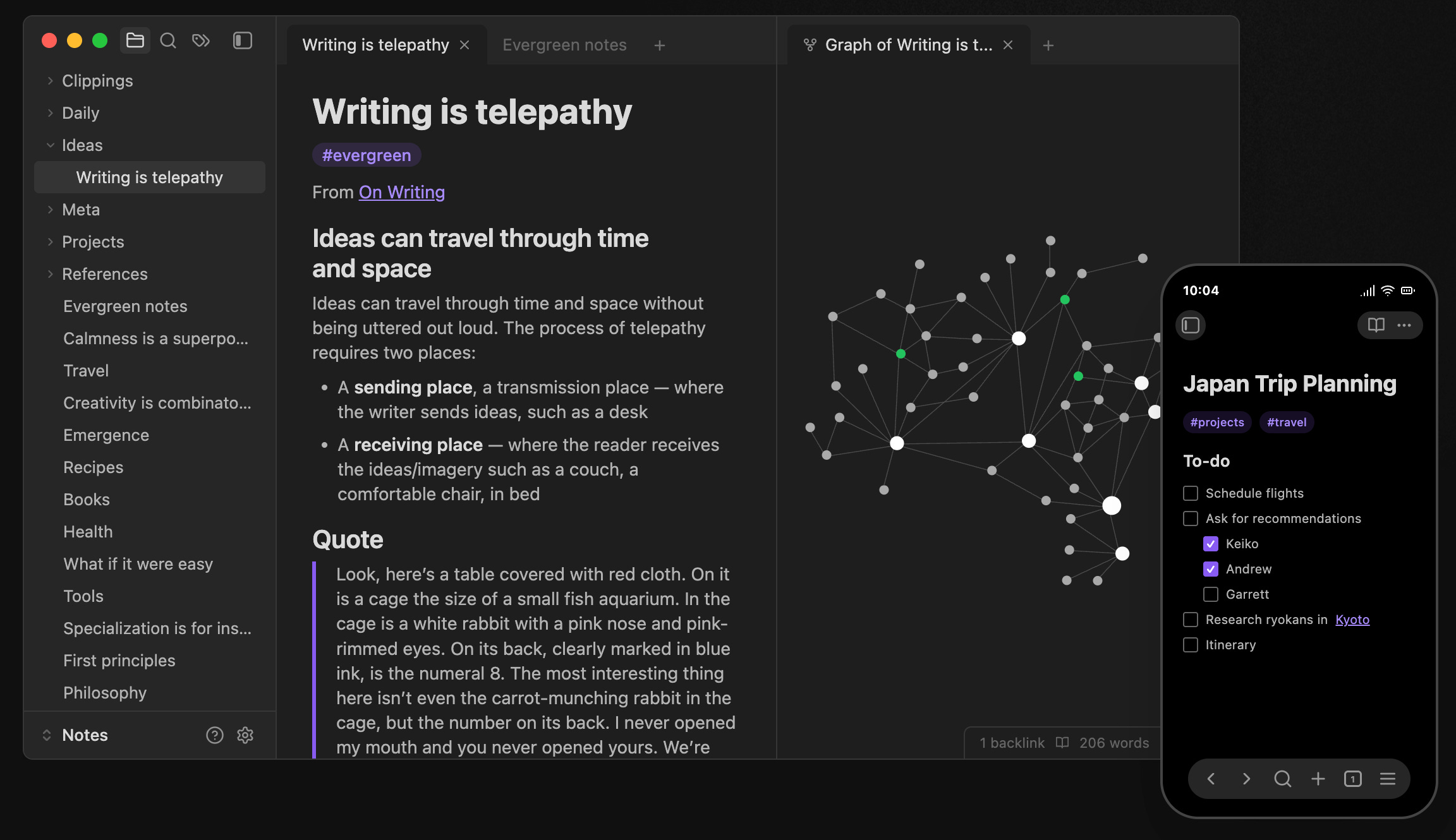
Soooo why Obsidian? Because it runs locally on your computer, so Claude Code can read and edit the files in no time, just like code scripts.
Every note is just a Markdown .md file located at your computer (I explained markdown format in this post). Obsidian Vault is just a folder, where these markdowns are kept.
How to set it up?
Again, quite simple. Watch video or follow the instruction:
1. Create a folder in your computer
Just create it manually and call it /ai-workspace. Then, create inside two folders: /notes and /repos.
2. Clone your repos.
If you followed me from post #1, you already have a repo. Otherwise, clone it with this command:
cd ~/ai-workspace/repos
git clone https://github.com/mkloe/agentic-pm-app.git
3. Set up Obsidian in the notes folder.
Open Obsidian → “Open folder as vault” → select ~/ai-workspace/notes.
Key point: Obsidian keeps working normally. You just point it to the right folder.
PS. You can also create a git repo from /notes, so you can revert changes if agent messes up too much :)
4. Create workspace AGENTS.md rules.
Example:
# Agent Rules

## Who I am
Product Manager working on [product name].
Explain in plain language. No tech jargon.

## My workspace
- /repos/my-product/ → company codebase
- /notes/ → my Obsidian vault with strategy, research, meeting notes, sprint briefs
- When I ask you to save something, put it in the right /notes/ subfolder

## How to answer
- Before answering, check /notes/ for relevant context
- Cross-reference code with notes when making recommendations
- If notes and code contradict, flag it
5. Run Claude Code in your workspace.
cd ai-workspace
claude
Woooah! Now you can run ai agents in the AI workspace.
They can read your notes, code, pull data from MCPs.
They have access to EVERYTHING that you can access.
So instead of doing stuff with your own hands, you can start prompting AI agents.
The magic - what you can actually do now
ChatGPT did not know your notes and context about your product. Cursor was stuck in one repo. This time is different. I’m sharing with you 4 examples of powerful prompts:
Agent reads your notes AND code
Read my strategy notes in /notes/strategy/ and cross-reference with the
codebase. Which strategic goals are already supported by existing features
and which ones have zero coverage in the code?
The agent writes INTO your Obsidian vault
Read the meeting notes from /notes/meeting-notes/2026-03-10.md.
Extract all action items and open decisions.
Check the status of discussed items in the codebase.
Save a summary to /notes/sprint-briefs/sprint-23.md
MCP pulls live data → agent saves it in your notes
Pull the current sprint from Jira MCP.
Compare with /notes/strategy/q2-goals.md.
Are we working on the right things? Save your analysis to /notes/sprint-briefs/alignment-check.md
Agent builds a weekly brief automatically
Read /notes/sprint-briefs/ for last week's brief.
Pull latest from Jira MCP.
Check what changed in the codebase (git log).
Generate this week's brief and save it.
More to come!
The Claude Code ecosystem is very powerful. In the next posts, I’ll show you how to go beyond basic prompts: powerful MCPs, agent SKILLS and more.
The bottomline: every work that you start now should be done in the AI workspace. This is how I work too.
What’s next?
We started from ZERO as ChatGPT prompters. We learned Cursor to chat with the codebase. I showed you how to set up MCPs, and how to get started with Claude Code.
Today we created an AI workspace to run AI Agents, and to have an AI operating system for PMs, whose usage compounds over time.
We’re done with the theory.
In the next posts, I will (finally!!!) start showing interesting real-life use cases. This includes:
Posthog MCP
Vibe-drawing diagrams with Excalidraw plugin
Competitor analysis based on screenshots
Stay tuned!
Oh man, this is some really nice shit! Always wanted to make my assistant more productive, it turns out I just need an AI second brain! Keep the good work going.
Running Claude Code with an Obsidian vault for about four months and the single-folder workspace setup described here is close to what actually works. The key tweak that made mine stable: separating memory into layers with different update cadences.
Short-term working notes update every session, project context updates weekly, identity profile only when something fundamental changes. Without that separation the vault becomes noise within a couple weeks. Although access to context is the obvious win, the compounding part is subtler.
Over time the agent builds assumptions about your preferences that you never explicitly stated. That compounds in useful ways and occasionally in surprising ones. The AGENTS.md approach handles this better than generic README files do.